Your app's test emails are not arriving: check the sending side
You point a test subdomain at this site, open signup-01@test.example.com, trigger the sign-up in your app, and the mailbox stays empty. It is tempting to blame the mailbox. Usually the letter never left your side, or it left and was stopped on the way.
A letter from an app passes through five places before it shows up on the page. This guide goes through them in order, starting with a two-minute test that tells you which half of the path to look at.
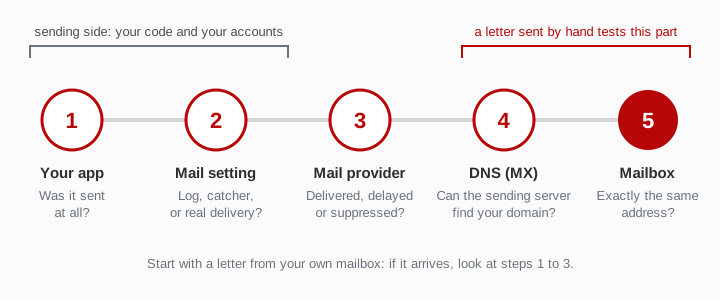
First: send one letter by hand
From your ordinary mailbox (Gmail, Outlook, a work account), send a short letter to the same address your app was supposed to write to. Keep the mailbox page open.
- Your letter arrives. The receiving side works: the MX record is in place and mail is accepted. The problem is on the way from your app. Start with step 1 below.
- Your letter does not arrive either. The problem is most likely the domain, not the app. Go to step 4, or straight to the setup guide and its troubleshooting list. If the record looks right, try once more from a second mailbox: the first one may be the problem.
Step 1. Did the app actually send anything?
Many "missing" emails were never sent at all. Look for the line in your application log that says a letter was sent. If there is no such line, one of these is likely:
- The letter waits in a queue that nobody processes. Many projects send mail through a background job. On a fresh test server the worker that handles the queue is often not running, so letters pile up and nothing goes out.
- An error was caught and ignored. Code that wraps sending in a try/catch block and carries on may hide a failed connection to the mail provider. Search the error log, not just the normal log.
- The flow skipped the email. A feature switch, a "send only in production" condition or an already-confirmed test account can mean the code path never reached the send call.
Step 2. Where does this environment send mail?
Most frameworks let each environment choose what "send" means. On development and test servers it often means something other than delivery:
- Write to a log or the console. The letter is printed into a file or the terminal and goes nowhere else.
- Hand over to a local mail catcher. Tools that catch all outgoing mail for inspection are common on developer machines and staging servers. The letter is sitting in that tool, not on its way to you.
- Redirect every letter to one address. Some projects rewrite all recipients on staging so that real users never get test mail. Your test address is replaced before sending.
Check the mail settings of the exact environment you are testing, not the ones on your own machine. They often differ.
Step 3. What does the mail provider say?
If your app hands letters to a mail provider, the provider keeps a delivery log. It is the single most useful place in this whole guide: it records whether the letter was accepted, delivered, delayed, bounced or dropped, usually with the reply of the receiving server.
| What the log shows | What it usually means |
|---|---|
| no entry at all | the letter never reached the provider — go back to steps 1 and 2 |
| suppressed or dropped | the provider refused to send to this address, often because an earlier attempt bounced |
| deferred or delayed | the receiving side could not be reached yet; the provider will retry for a while |
| bounced | the receiving server refused the letter; the reason is in the bounce message |
| delivered | the letter was handed over; check that the address in the log is the one you opened |
Two provider situations catch new projects again and again:
- Test or sandbox mode. New accounts often start restricted. A new Amazon SES account in the sandbox sends only to addresses and domains you have verified, and a Mailgun sandbox domain only to recipients you have authorised. A fresh address on your test subdomain is not on either list, so nothing reaches it until you verify the address or the domain, or move the account out of the sandbox. Other test modes accept a letter without delivering it at all, such as Postmark's test token or SendGrid's sandbox setting. The exact rules change over time, so check your provider's documentation for what your account is allowed to do.
- The suppression list. If you sent to
signup-01@test.example.combefore the MX record was in place, that first attempt may have bounced. Many providers then add the address to a suppression list and skip it on later attempts; the log shows those letters as suppressed or dropped. Either remove the address from the provider's suppression list, or simply use a new name. Any name on your subdomain works, sosignup-02@costs nothing.
Step 4. Can the sending server find your domain?
A sending server looks up the MX record of the recipient domain. If you added the record a few minutes ago, the change may not have reached the DNS server your provider asks. DNS servers can also keep a "no such record" answer for a while. The provider then delays the letter and tries again later, sometimes for hours.
If the letter you sent by hand arrived, the record is fine and a short wait usually solves it. If it did not arrive, recheck the record itself: type MX, the right host, and the mail server spelled exactly as in the setup guide. The most common slip is typing the subdomain twice, which creates a record for the wrong name.
You can check the record yourself. In a terminal, run nslookup -type=mx test.example.com (or dig MX test.example.com) and look for the mail server named in the setup guide. No answer means the record is not visible yet, or sits under a different name.
Step 5. Are you looking at the right mailbox?
It sounds obvious, yet it explains a fair share of "lost" letters:
- A different spelling. Compare the address in the provider's log with the one you opened, letter by letter. Hyphens, dots and a missing subdomain are the usual differences.
- Capital letters. Mail systems do not all agree on whether
Signup-01@andsignup-01@are the same mailbox, and your own code may disagree with both. Use lower-case test addresses, and test mixed case separately and on purpose. - An old tab. If you opened several mailboxes, the inbox list shows them newest first. Make sure the page in front of you is the address from the log.
A quick order to remember
- Send a letter by hand. If it arrives, continue with the next step; if not, go to the last one.
- Find the "sent" line in the app log.
- Check the mail setting of that environment.
- Read the provider's delivery log, including the suppression list.
- Recheck the MX record, then the exact address.
Once letters arrive, the next job is checking what is inside them: links, expiry, time zones and attachments. That is covered in Test your project's emails before launch: a checklist.