Test your project's emails before launch: a checklist
The emails a project sends are easy to forget until a real user complains. The sign-up link opens the staging site, the password reset works twice, the receipt shows the wrong time. None of this shows up in unit tests, because the bug is in the letter a person actually receives.
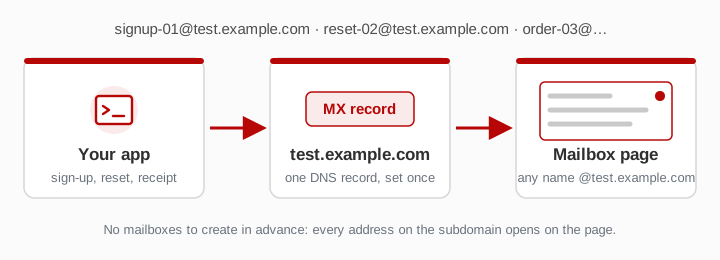
This guide walks through what to check in each kind of email, using a fake mail generator on a domain you control. Point a subdomain such as test.example.com at this site, and every address on it becomes a mailbox you can open in the browser: signup-01@test.example.com, reset-02@test.example.com, and so on. You do not create them first. The setup takes one DNS record and is described in Use your own domain in three steps.
Why test on your own domain at all
You can test with random addresses on our domains, and for a quick look that is fine. A domain of your own helps in three ways:
- The addresses look like your users' addresses. Some sign-up forms and email providers treat unfamiliar domains differently. Testing on a normal-looking domain you own removes that variable.
- You control the names. A naming scheme such as
reset-1119-a@tells you, weeks later, which test run a letter came from. - Nothing depends on our domain list. Your test subdomain does not change when the domains offered on the home page do.
Pick a naming scheme before you start
Since any name works, it is tempting to type whatever comes to mind. A short scheme pays off as soon as there are more than a handful of letters:
| Part | Example | What it tells you |
|---|---|---|
| flow | signup, reset, order | which email you were testing |
| date or build | 1119, b482 | which run or release it belongs to |
| case | a, b, expired | which variant of the test |
Put together, you get reset-1119-expired@test.example.com. Use a fresh address for every case. If two tests share an address, you will not know which letter belongs to which.
Sign-up confirmation
- It arrives, and in reasonable time. Note how long it takes. A confirmation that takes five minutes to arrive loses people.
- The sender looks right. The name and address in the From line should be the ones users will recognise, not a framework default or a developer's own address.
- The link points to the right site. This is the most common bug: a letter sent from staging carries production links, or the other way round. Hover over the link before clicking and read the host name.
- The link cannot be used twice. Click it, then click it again. The second click should say the address is already confirmed, not confirm it twice or show an error page.
- The language matches the user's choice. If your project has several languages, sign up once per language and check the subject, the button text and the date format.
- A second sign-up with the same address is handled. Register again with the address you just used. Whatever your project does (a reminder, a "you already have an account" letter, or nothing), it should be on purpose.
Password reset
Reset letters carry the most risk, so they deserve the most cases:
- Request two resets in a row. In most projects only the newest link should work. An older link that still works widens the window for abuse, so make sure it is a deliberate choice.
- Wait past the expiry time. Use a separate address for this case and come back after the link should have expired.
- Ask for a reset for an address that has no account. The page your project shows should look the same as for a real account. Otherwise anyone can find out who is registered. Because any address on your test domain works as a mailbox, you can also see whether your project sends a letter to the unknown address, and what that letter says.
- Change the password, then check whether old sessions are signed out. Many projects log the user out elsewhere after a reset. Decide whether yours should, and test it.
Changing the email address
Open two mailboxes, an old one and a new one, for example change-old@ and change-new@. A careful project sends a confirmation to the new address and a notice to the old one, so the owner learns if someone else made the change. Check both mailboxes.
Receipts, invoices and attachments
- Amounts, currency and tax lines match what the user saw on the checkout page.
- Dates and times are in the time zone you intended. The list of letters on this site shows the arrival time in UTC, which makes a wrong offset in the letter easy to spot. Try one order just before midnight UTC: "today" in the letter and the date on the receipt should agree.
- Attachments open. A PDF invoice should arrive with a sensible file name and a reasonable size, and open without errors. Attachments are shown with the letter, so you can open them as a user would.
What the letter looks like
- Images load from the right place. Pictures that point to a developer's machine or to staging break as soon as you launch.
- Without images, the letter still makes sense. Many mail apps hide images until the reader allows them. The main message and the button text should be readable without them.
- There is a plain-text version. Some readers and filters rely on it. It should say the same thing as the formatted letter, including the link.
- The unsubscribe or "this wasn't me" link works. Newsletters and security notices usually carry one. Open it and check that it does what the text promises.
- The subject line is specific. "Confirm your email for Example" beats "Notification".
Keep the test practical
A few habits make the work faster:
- Keep the mailbox open while you test. New letters appear on the page by themselves. If you switch to your code editor, turn on the sound or the pop-up in the settings so you notice the letter.
- Write down results the same day. Letters stay for at least a few days, often longer, but there is no fixed figure. Do not rely on finding an old test letter next month.
- Find earlier mailboxes in the list of mailboxes you opened. It is kept in your own browser, newest first, so you can return to a test from yesterday on the same device.
What not to do
- Do not use real customer data. Every mailbox here is public. Anyone who types the same address sees the same letters. Use invented names, test orders and dummy payment data only.
- Do not use it for load testing. Sending thousands of letters at once does not test your emails, and such traffic may be slowed down or refused. Use a local mail catcher or your provider's test mode for volume.
- Do not expect replies to work. The service only receives. If your flow includes a user replying to a support letter, test that part with a real mailbox.
Before you go live
If the test subdomain will never carry real mail, you can leave its MX record in place for the next release. If you tested on the domain your users will actually write to, put your real mail server's MX record back before launch. Until you do, mail meant for you arrives in public mailboxes here. If you plan to retire the test domain one day, read When your domain expires first.
Test letters that never arrive at all are a separate problem, and the cause is usually on the sending side. See Your app's test emails are not arriving: check the sending side.